Setup guide
PokeMMO Bot Setup Guide
This public onboarding guide explains what is required to get PokeBotLabs running for the first time: account access, dashboard download eligibility, game settings and selecting the PokeMMO window.
1. Free trial setup video
Start here if you are new to PokeBotLabs. This video shows how to create an account, download the Windows client and activate the 4-hour free trial from the desktop app.
2. PokeBotLabs Smart Route Recorder Tool Guide
How do you record your own route?
Use the PokeBotLabs Smart Route Recorder Tool to capture a custom farming path in PokeMMO, then load that route in Payday Machine. Watch this guide before recording your first route.
3. Windows display settings
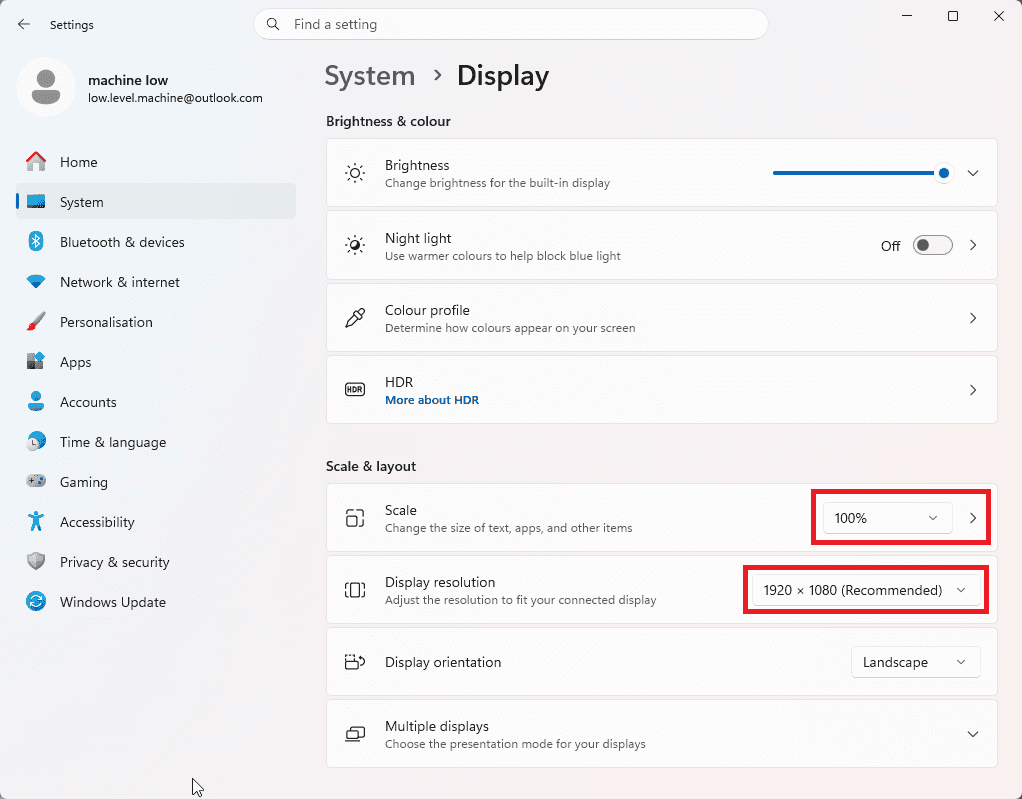
Before selecting the game window, set Windows display scaling and resolution to the expected layout. PokeBotLabs reads fixed screen regions from the PokeMMO client, so mismatched scaling or resolution can shift UI elements and make visual checks less reliable.
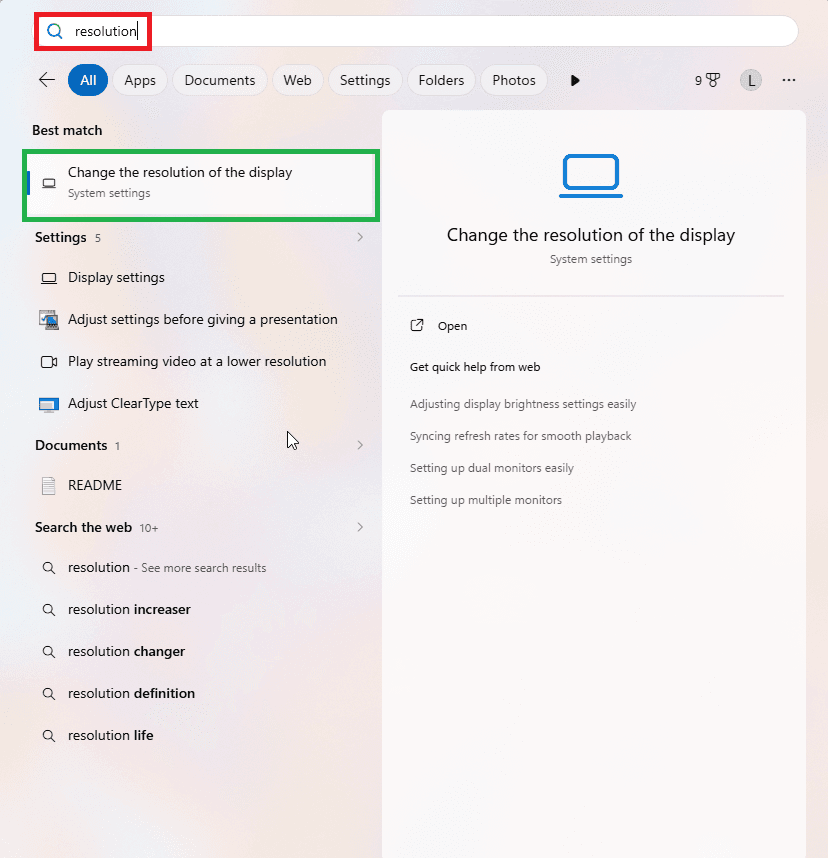
- Open the Windows Start menu and type resolution.
- Click Change the resolution of the display.
- Set Scale to 100%.
- Set Display resolution to 1920 x 1080.
- After changing display settings, restart PokeMMO before selecting the game window in the bot.
4. Payday Bot guide video
After the trial setup video, watch this Payday Bot guide to understand the farming workflow before starting your first session.
Current account and download flow
- Create a PokeBotLabs account from the website.
- Open the dashboard after login.
- Download the Windows client if your account has an active license, active trial or available trial entitlement.
- Start the 4-hour free trial from the Windows client; website registration alone does not start the timer.
- Keep the PokeMMO settings applied by the bot unchanged after relaunching the game.
Before you start
- Use Windows 10/11 x64 and the normal PokeMMO desktop client.
- Extract the downloaded ZIP before launching the PokeBotLabs client.
- Do not move or delete files from the extracted client folder while it is running.
- Keep your game client, bot client and selected route configuration consistent during a session.
Create account and download
Website registration prepares your account, but it does not start the free trial timer. The 4-hour trial starts only from the Windows client after the device is verified.
- Register or log in on the PokeBotLabs website.
- Open the dashboard and check the download card.
- Download access is available with an active license, active trial or available trial entitlement.
- After download, launch the Windows client and log in with the same account.
Select game and apply first configuration
The bot expects the PokeMMO client layout to match the required settings. The desktop client can validate and apply those settings. After the game is restarted, the Battle chat tab should remain selected so event logs can be read correctly.
Use the target icon in the bot window and drag it onto the actual PokeMMO game window. If the bot applies required settings, fully restart PokeMMO, log back in, keep Battle chat selected and then select the game window again.
- The selected window must belong to PokeMMO.
- If the bot asks for a restart, close and reopen the game before selecting it again.
- Do not change the generated game settings after the bot accepts the window.
- If selection fails, do not keep retrying random windows; return to the PokeMMO client window.
Choose route, mode and starting position
Select a supported map and route type from the client. Grass, Surf and Fishing are route methods with different movement and encounter logic; Fishing is not a separate product.
- Use only supported route names shown by the client.
- Choose Grass routes for configured grass movement.
- Choose Surf routes for supported water routes.
- Choose Fishing routes only when the selected map has fishing route data.
- If the route expects Pokecenter recovery, stand directly in front of the selected route's Pokecenter door before starting.
- Wrong routes or wrong starting positions can break movement, farming and recovery.
Prepare party, catcher and horde support
- Prepare the Payday Pokemon or leveling party required by your selected workflow.
- Keep your dedicated catcher Pokemon in party slot 6 for supported Shiny handling.
- If Horde encounters can occur, prepare a suitable non-catcher Pokemon with a reliable single-target damaging move.
- The single-target move helps clear surrounding Horde Pokemon while preserving the Shiny where the supported flow allows it.
- Do not wait until a Shiny appears to prepare the catcher or battle moves.
Battle chat and input bindings
PokeBotLabs uses visual state and Battle chat information together. Keep the Battle tab visible and make sure the bot's dynamic input bindings match the controls inside PokeMMO.
- Set movement, action, back, stop, pause, mount and product-specific keys in the bot.
- Keep the PokeMMO in-game controls aligned with the saved bot keys.
- There is no single universal hotkey layout for every user.
- If movement, menu actions or recovery look wrong, check bindings before changing route data.
Start and watch the first session
The first run should be short. Watch the overlay and the game together so you can confirm that the route, encounters, battles, recovery and special alerts behave as expected.
- Confirm that movement follows the selected route.
- Confirm that encounters are detected and battle actions begin.
- Confirm that the overlay status matches the visible game state.
- Confirm that recovery starts only when needed.
- If anything looks wrong, stop the bot and keep the latest session log.
Support logs
If a route, battle state or OCR step behaves unexpectedly, attach the latest session log in a support ticket. Logs are more useful than screenshots alone because they show the exact state transitions the bot saw.
You can open support from the dashboard. See the PokeMMO bot FAQ for common setup questions.
Where to go after setup
This setup guide is intentionally focused on first-run requirements. After you have the client open, use the operational user guide for hotkey configuration, troubleshooting and support-log workflow.
Common setup problems
- The bot does not start: confirm login, entitlement, selected game window and required game restart.
- The game cannot be selected: use the target icon on the PokeMMO window, not another application.
- Movement is wrong: verify route type, starting position and input bindings.
- Battle flow stops: keep Battle chat visible and check for move prompts, CAPTCHA, Shiny handling or recovery states.
- Recovery does not start: confirm the selected route has supported Pokecenter recovery data.
- CAPTCHA appears: solve it manually; the bot should only pause and alert you.
- Shiny handling issue: check party slot 6 catcher and Horde-preparation moves.
- License/auth issue: use the same account and device entitlement, then open a support ticket if HWID messages appear.
Ready to try PokeBotLabs?
Create an account, open the dashboard and download the Windows client when your account has an active license, active trial or available trial entitlement.